by
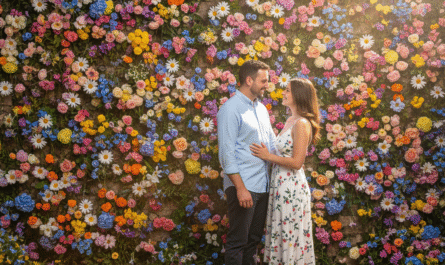
by In the age of AI-powered creativity, Google’s Nano Banana has emerged as one of the most powerful tools for generating realistic images. Whether you want to create stunning portraits, lifelike landscapes, or hyper-realistic couple photos, Nano Banana allows you to transform ideas into visual art with incredible precision. This guide will walk you through the process of making a realistic photo on Google’s Nano Banana, step by step.
What is Google Nano Banana?
Google Nano Banana is an advanced AI image generator that leverages deep learning algorithms to create highly realistic photos based on textual prompts or reference images. Unlike traditional AI tools, Nano Banana focuses on hyper-realistic rendering, preserving facial features, textures, and lighting to produce images that are strikingly lifelike.
Key Features:
- High-resolution AI-generated images
- Realistic facial expressions and skin tones
- Background and environment customization
- Style adaptation: from cinematic to photographic realism
Step 1: Access Google Nano Banana
To start creating your realistic photo:
- Visit the official Google Nano Banana website or platform interface.
- Sign in with your Google account for full access.
- Familiarize yourself with the dashboard, which includes input options for text prompts and reference images.
Step 2: Choose a Reference Image
A reference image helps the AI understand facial features, posture, and expressions.
- Upload a clear, high-resolution photo of the subject.
- Ensure the image has proper lighting and visibility of facial features.
- For couple photos or group images, upload all relevant faces to maintain realism.
Tip: Nano Banana can generate images “the exact same face as the uploaded image (no alteration, 100% identical)” if precision is your goal.
Step 3: Create a Detailed Prompt
The key to realism lies in a well-crafted prompt. Include:
- Subject description: age, gender, pose
- Environment: indoor, outdoor, cityscape, natural scene
- Style & mood: cinematic, photorealistic, soft lighting
- Additional elements: clothing, accessories, objects
Example Prompt:
“A photorealistic portrait of a young woman smiling, standing in a sunny park, wearing a red dress with flowing hair, soft background blur, cinematic lighting, highly detailed textures.”
Step 4: Customize Image Settings
Nano Banana allows you to tweak various settings for realism:
- Resolution: Choose the highest available for clarity
- Lighting & Shadows: Adjust to match natural light conditions
- Style Transfer: Apply photographic realism or cinematic effects
- Background Details: Ensure depth, perspective, and realism
Tip: Avoid overloading the prompt with unnecessary elements; simplicity often produces more natural results.
Step 5: Generate the Image
After configuring your prompt and settings:
- Click “Generate” or “Create Image.”
- Wait for the AI to process and render the photo.
- Review the output and make adjustments if necessary.
- You can re-generate images multiple times to get the most realistic version.
- Use the refine tool if Nano Banana provides it to enhance facial or environmental details.
Step 6: Post-Processing (Optional)
For an extra layer of realism:
- Use photo editing software like Photoshop or Lightroom to adjust colors, contrast, and sharpness.
- Avoid heavy editing to maintain the AI-generated realism.
- Add subtle details like reflections, shadows, or environmental effects for a lifelike look.
Tips for Achieving Maximum Realism
- High-Quality Inputs: Always use clear reference images.
- Precise Prompts: Include as many specific details as possible.
- Multiple Attempts: Generate variations and choose the best output.
- Subtle Editing: Minimal adjustments post-generation can enhance realism.
- Experiment with Styles: Nano Banana allows testing different styles; find one that fits your scene naturally.
Conclusion
Creating a realistic photo on Google’s Nano Banana is both an art and a science. By carefully selecting reference images, crafting detailed prompts, and tweaking settings, you can produce hyper-realistic AI-generated images that are indistinguishable from real photographs. Whether you are a professional designer, photographer, or hobbyist, Nano Banana opens a world of creative possibilities.
Start experimenting today and see your ideas come to life in incredible realism. If you enjoyed this guide, explore more tutorials on AI image generation and learn how to make realistic couple photos, landscapes, and cinematic portraits with Google Nano Banana.