by
Most online accounts are hacked not because of advanced attacks, but because of weak or reused passwords. Passwords like “123456”, your name with your birth year, or the same password across email, banking and social media make it easy for criminals to break in. Creating a strong password for every important account – and storing it safely – is one of the simplest ways to protect your money, photos and personal data.
This guide explains what makes a secure password, 10 easy ways to create one you can remember, how password managers work, two-factor authentication, and what to do if your password is leaked.
Table of Contents
What Makes a Strong Password?
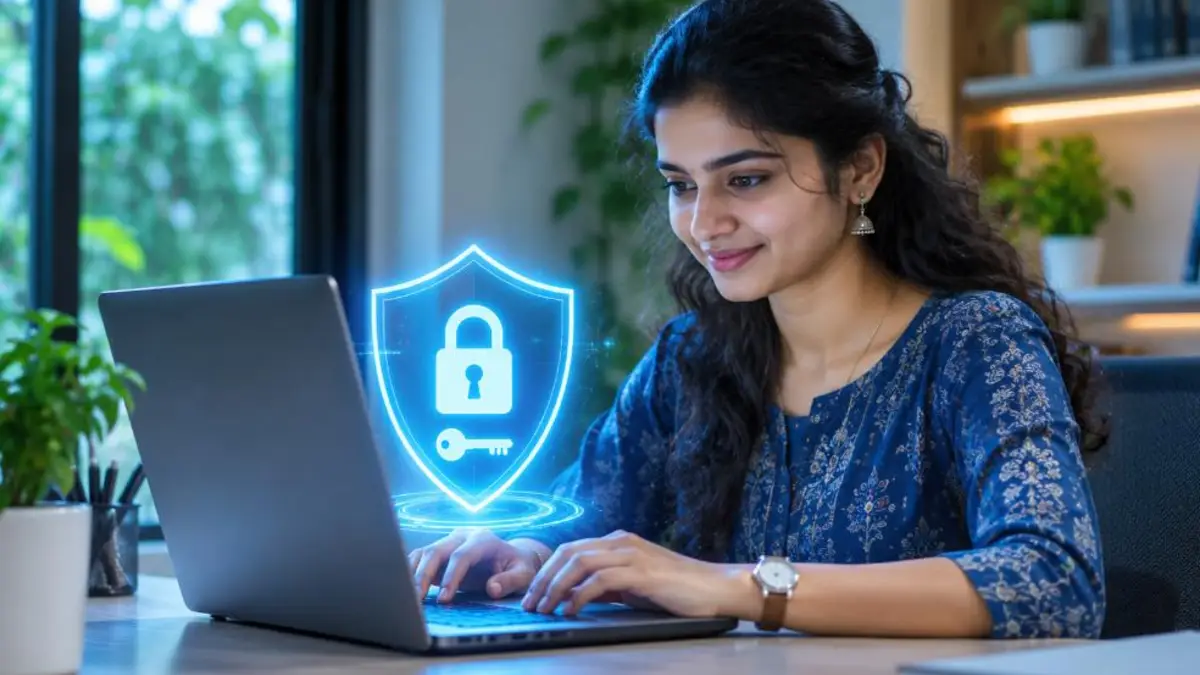
- Length: At least 12–16 characters. Longer is stronger.
- Variety: A mix of uppercase and lowercase letters, numbers and symbols.
- Unpredictability: No names, birthdays, phone numbers, vehicle numbers or common words.
- Uniqueness: A different password for every important account.
- Privacy: Never shared with anyone or written on a sticky note near your device.
Weak vs Strong Password Examples
| Weak password | Why it’s weak | Stronger idea (example pattern only) |
|---|---|---|
| 123456 | Most common password worldwide | Use a long random passphrase |
| Rahul1995 | Name + birth year, easy to guess | Unrelated words with symbols and numbers |
| password@123 | Common pattern used by many | Unique phrase you create yourself |
| Kerala2026 | Place + year, predictable | Four random words joined with symbols |
Never use example passwords from websites (including this one) as your actual password. Create your own.
10 Easy Ways to Create a Strong Password
1. Use a passphrase
Combine four or more unrelated words with symbols and numbers. Long passphrases are easier to remember and harder to crack than short complex passwords.
2. Use the first-letter method
Take a sentence only you know and use the first letters of each word, adding numbers and symbols. This creates a random-looking password that you can recall from the sentence.
3. Avoid personal information
Names, birthdays, pet names, phone numbers and vehicle numbers can be found easily on social media.
4. Don’t reuse passwords
If one website is breached, criminals try the same email and password on banking, email and shopping sites. Unique passwords stop this chain.
5. Make it long
Each extra character dramatically increases the number of combinations an attacker must try.
6. Mix character types
Use uppercase, lowercase, numbers and symbols, but in unpredictable positions – not just a capital at the start and a number at the end.
7. Use a password manager’s generator
Password managers can generate long random passwords for each account and fill them automatically.
8. Change passwords after a breach
If a service you use reports a data breach, change that password immediately and any other accounts that used the same one.
9. Protect your email password most
Your email account is the key to resetting all other passwords. Give it your strongest password and two-factor authentication.
10. Never share passwords or OTPs
Banks, telecom companies and government agencies will never ask for your password or OTP. Anyone asking is a scammer.
Common Password Mistakes
| Mistake | Risk | Fix |
|---|---|---|
| Same password everywhere | One breach exposes all accounts | Unique robust password for each site |
| Short passwords | Cracked quickly by software | Use 12–16+ characters |
| Personal details in passwords | Easy to guess | Use random words or generator |
| Writing passwords on paper near the computer | Anyone can see them | Use a password manager |
| Sharing passwords on WhatsApp or email | Messages can be leaked | Share securely only when necessary |
| Ignoring breach alerts | Account takeover | Change password immediately |
Strong Password Tips for Banking and UPI
- Use a secure password for net banking that is different from your email password.
- Never share your UPI PIN – you only need it to send money, not to receive it.
- Lock banking apps with biometrics or an app PIN.
- Don’t save banking passwords on shared computers.
- Log out after using banking on public or office computers.
How Hackers Steal Passwords
Understanding the methods helps you stay safe:
- Phishing: Fake websites and messages trick you into entering passwords.
- Credential stuffing: Leaked passwords from one site are tried on many others.
- Brute force: Software tries many combinations; short passwords fall quickly.
- Malware: Keyloggers on infected devices record what you type.
- Shoulder surfing: Someone watches you type in public.
A robust password, unique for each account, together with 2FA and safe browsing habits, defeats most of these attacks.
Passkeys: The Future Beyond Passwords
Many services now support passkeys – a new login method that uses your device’s fingerprint, face unlock or screen PIN instead of a typed password. Passkeys are resistant to phishing because they work only on the genuine website or app. Google, Apple, Microsoft and many apps support them. Where available, consider enabling passkeys alongside your secure password for even better protection.
What Is a Password Manager?
A password manager is an app that securely stores all your passwords in an encrypted vault protected by one master password. It can generate a robust password for each site and autofill it when you log in. Popular options include password managers built into Google Chrome and Android, Apple’s iCloud Keychain on iPhone and Mac, and independent apps.
Benefits of a password manager
- You need to remember only one master password.
- Every account gets a unique, secure password.
- Autofill reduces typing and protects against some fake websites, because the manager fills passwords only on the correct site.
- Many managers alert you if your passwords appear in known data breaches.
How to choose a master password
Your master password must be the strongest password you have – a long passphrase that you never use anywhere else. Turn on two-factor authentication for the password manager account as well.
Step-by-Step: Setting Up Google Password Manager
- On an Android phone, open Settings > Google > Autofill > Google Password Manager (menu names may vary).
- Turn on offers to save passwords and auto sign-in.
- When creating a new account in Chrome, accept the suggested robust password.
- Open Password Checkup to find weak, reused or compromised passwords.
- Update flagged passwords one by one, starting with email and banking.
- Make sure your Google account has a secure password and 2-Step Verification enabled.
Step-by-Step: iPhone Passwords and Keychain
- Open the Passwords app or Settings > Passwords.
- Turn on iCloud Keychain to sync passwords across Apple devices.
- Use the security recommendations section to find weak or compromised passwords.
- Let Safari suggest a robust password when signing up for new sites.
- Protect your Apple ID with a secure password and two-factor authentication.
A 30-Minute Password Clean-Up Plan
| Time | Task |
|---|---|
| 0–5 minutes | Set a robust password and 2FA on your main email |
| 5–10 minutes | Enable WhatsApp two-step verification PIN |
| 10–15 minutes | Secure Facebook and Instagram with new passwords and 2FA |
| 15–20 minutes | Update net banking password and enable app lock on banking/UPI apps |
| 20–25 minutes | Run a password checkup in your password manager |
| 25–30 minutes | Update recovery phone and email on all key accounts |
In just half an hour, you can dramatically improve your online safety. Repeat a quick check every few months.
Strong Password Tips for Small Businesses
Shops, clinics and small offices often share one login among staff, which is risky. Give each employee their own account where possible, use a business password manager for shared credentials, and change passwords when staff leave. Protect business email and payment accounts with 2FA, and train staff to recognise phishing messages. A single compromised account can expose customer data and business funds, so treat password security as a basic business practice.
Lost access to an account already? Our guides on WhatsApp and Aadhaar services can help: see Aadhaar online services guide.
Two-Factor Authentication: Your Second Lock
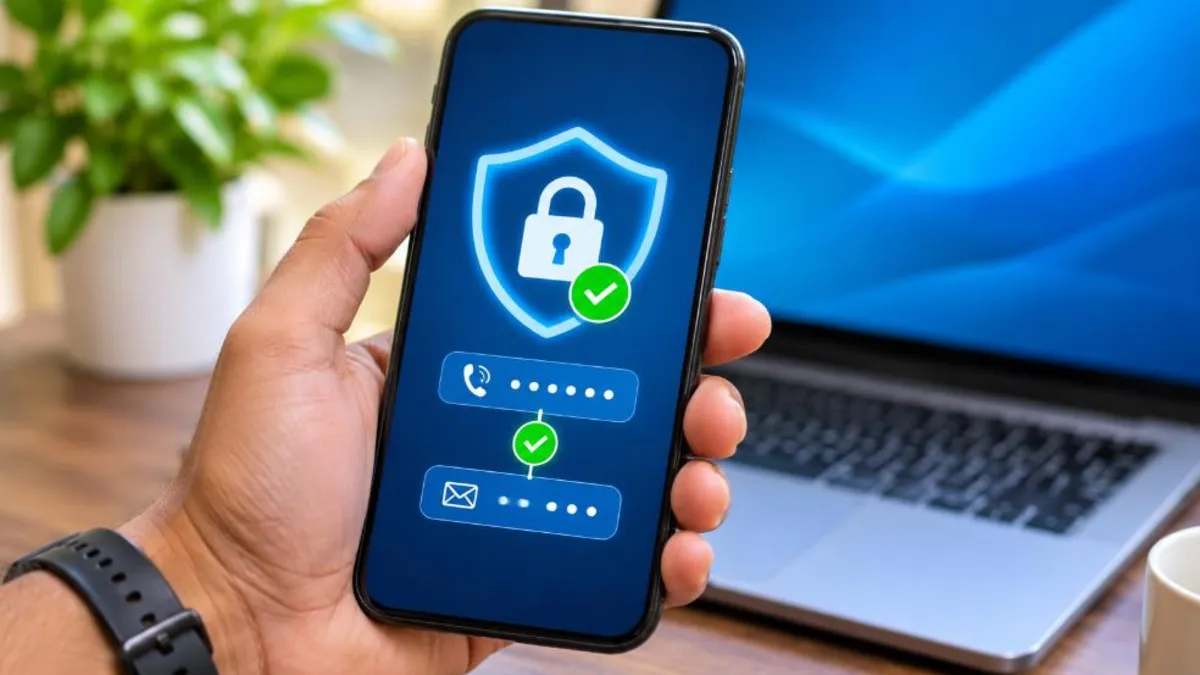
Even a secure password can be stolen through phishing. Two-factor authentication (2FA) adds a second step – a code from an authenticator app, an SMS OTP or a prompt on your phone – before login. Enable 2FA on:
- Email accounts (Gmail, Outlook, etc.)
- WhatsApp (two-step verification PIN)
- Facebook, Instagram and other social media
- Banking and UPI apps (use app lock and PIN)
- Cloud storage and password managers
Authenticator apps are generally more secure than SMS codes because they cannot be intercepted through SIM swap fraud.
How to Check If Your Password Was Leaked
- Use the password checkup feature in Google Password Manager or your browser’s password manager.
- Check reputable breach-alert services that tell you if your email appeared in known data leaks.
- If any password is flagged, change it immediately and enable 2FA.
- Review recent login activity in your email and social media accounts.
What to Do If Your Account Is Hacked
- Try to reset the password immediately using the official “Forgot password” option.
- Log out of all devices from the security settings.
- Enable 2FA and update recovery email and phone number.
- Check for changes hackers may have made, such as forwarding rules in email or new linked devices.
- Inform contacts if the hacker sent messages from your account.
- If money was lost, call the cyber crime helpline 1930 immediately.
Strong Password Habits for Families
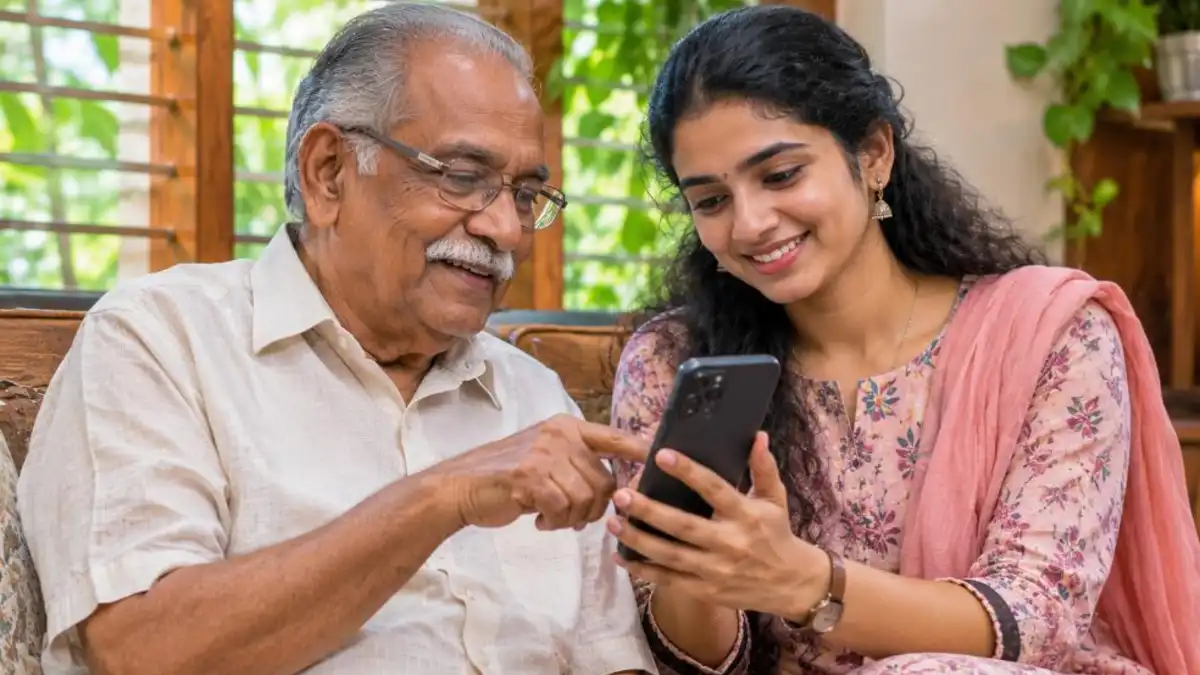
- Help elderly parents set up a robust password and 2FA on their phones and email.
- Teach children never to share passwords with friends.
- Use separate accounts on shared computers.
- Lock phones with a PIN, pattern or biometrics.
- Keep phones and computers updated.
Creating a Strong Password You Can Remember
Many people avoid long passwords because they fear forgetting them. Here’s a simple approach: pick a memorable but private scene, such as a childhood event, and turn it into a sentence. Then use the first letters, replace some letters with numbers or symbols, and add a word related to the site so each password is different. Practise typing it a few times. Better still, rely on a password manager for most sites and memorise only two or three passphrases – for your phone, your email and your password manager. This balance gives you a secure password everywhere without overloading your memory.
Protecting Elderly Parents Online
Senior citizens are frequent targets of online fraud. Many use simple passwords or share OTPs with callers who pretend to be bank staff. Sit with your parents and secure their accounts: set up a screen lock on their phone, enable WhatsApp two-step verification, use a password manager or a safe written record kept at home, and explain clearly that no genuine bank or government official will ever ask for an OTP, PIN or password. Save important helpline numbers on their phone, including the bank’s official customer care and the cyber crime helpline 1930. Regular, patient guidance protects them far more than any single setting.
Protecting Children’s Accounts
Children increasingly use online classes, gaming platforms and social media. Teach them basic password safety early: never share passwords with friends, log out on shared devices, and tell a parent if someone asks for login details. Use parental controls where appropriate, and create child accounts under family management features offered by Google and Apple. Building good habits young prepares them for safer digital lives as adults.
Public Wi-Fi and Shared Computers
- Avoid logging into banking or important accounts on public Wi-Fi without a trusted VPN.
- Never save passwords on shared or cyber café computers.
- Use private or incognito browsing on shared devices and log out completely.
- Check that websites use HTTPS before entering any login details.
Signs Your Account May Be Compromised
- Login alerts from devices or locations you don’t recognise.
- Password reset emails you didn’t request.
- Friends receiving messages you didn’t send.
- Unknown purchases or transactions.
- Changed recovery email, phone number or security settings.
- Emails disappearing or forwarding rules you didn’t create.
If you notice any of these, act immediately: change passwords from a safe device, log out of all sessions, enable two-factor authentication and contact the service’s official support.
Security Checklist
| Item | Done? |
|---|---|
| Unique passwords for email, banking and social media | ☐ |
| Password manager set up | ☐ |
| Two-factor authentication enabled on key accounts | ☐ |
| Recovery email and phone updated | ☐ |
| Phone screen lock and app locks enabled | ☐ |
| Password checkup completed | ☐ |
| Family members’ accounts secured | ☐ |
Tick these items one by one. Small steps today can prevent big losses tomorrow.
Final Thoughts
Online security doesn’t require technical expertise – it requires a few good habits. Create a robust password for every important account, store passwords in a trusted manager, turn on two-factor authentication, and stay alert to phishing. Spend a few minutes helping family members do the same. For official cyber safety guidance and reporting, visit the national cyber crime portal.
Make Security a Habit
Treat password security like locking your front door – something you do automatically every day. Whenever you sign up for a new app or website, let your password manager create a new secure password instead of reusing an old one. Every few months, run a quick password checkup and review which apps have access to your accounts. Remove old apps and accounts you no longer use, because forgotten accounts with weak passwords are easy targets.
Keep your phone, computer and browser updated, since updates fix security holes that criminals exploit. Be cautious with links in SMS, email and WhatsApp, especially those that create urgency. With these simple routines, your accounts stay safe and you can enjoy the internet with confidence.
Frequently Asked Questions (FAQ)
How long should a strong password be?
At least 12 characters, and preferably 16 or more for important accounts like email and banking.
Is it safe to save passwords in the browser?
Browser password managers are reasonably secure if your device and browser account are protected with a robust password and two-factor authentication.
How often should I change my password?
Change it immediately if there is a breach or suspicious activity. Otherwise, a strong, unique password with 2FA doesn’t need frequent changes.
Are passphrases better than complex short passwords?
Yes. Long passphrases of random words are usually both stronger and easier to remember than short passwords with symbols.
Should I use the same strong password for all accounts?
No. Even a secure password becomes risky if reused, because a breach on one site exposes all others.
What is the safest form of 2FA?
Authenticator apps and passkeys are generally safer than SMS codes.
Conclusion
A robust password is your first line of defence online. Use long passphrases, never reuse passwords, store them in a trusted password manager, turn on two-factor authentication and never share passwords or OTPs. These simple habits protect your money, privacy and digital life.