by
Emergency SOS Android is a built-in safety feature that can call for help, share your location and alert your loved ones within seconds, even if you cannot unlock your phone. Most people never set it up until they need it, and in a real emergency there is no time to search through settings. In 2026, almost every modern Android phone from Samsung, Google Pixel, Xiaomi, Redmi, Realme, Oppo, Vivo, OnePlus and Motorola includes an Emergency SOS option. This guide shows how to turn on Emergency SOS Android in 7 easy steps, how to add emergency contacts and medical information, and how it works with India’s national emergency number 112.

Table of Contents
Take five minutes today to set this up on your phone and on the phones of your parents, children and anyone who travels alone. It could make a life-saving difference.
What Is Emergency SOS on Android?
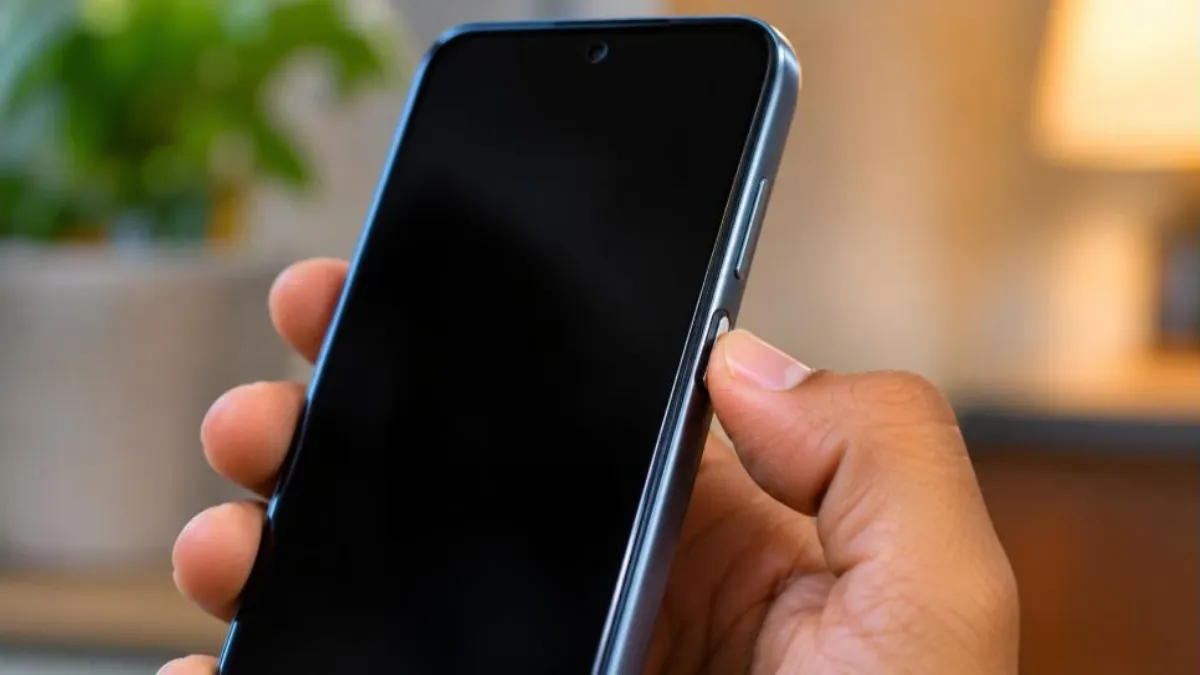
Emergency SOS Android lets you trigger an emergency action by pressing the power button quickly several times, usually five times. Depending on your phone and settings, it can:
- Play a loud alarm sound to attract attention.
- Show a countdown before acting, so you can cancel accidental triggers.
- Call your local emergency number automatically.
- Send your location to chosen emergency contacts.
- Record a short video or take photos on some models.
- Share emergency information from your lock screen with first responders.
Emergency Numbers in India
| Number | Service |
|---|---|
| 112 | National single emergency number for police, fire and ambulance (ERSS) |
| 100 | Police |
| 101 | Fire |
| 102 / 108 | Ambulance services in many states |
| 1930 | Cyber fraud helpline |
For Emergency SOS Android in India, set the emergency number to 112 where your phone allows a choice, because it connects you to the integrated emergency response system.
Emergency SOS Android: 7 Easy Steps (Stock Android and Pixel)
Step 1: Open Safety settings
Go to Settings and tap Safety & emergency. On some phones this is under Settings > System or appears when you search “Emergency SOS”.
Step 2: Tap Emergency SOS
Select Emergency SOS and turn on “Use Emergency SOS”.
Step 3: Choose the trigger
The common trigger is pressing the power button five times or more quickly. Read the description on your phone to confirm.
Step 4: Set the countdown alarm
Turn on “Play countdown alarm” if you want a loud sound before the call starts. Turn it off if a silent alert would be safer in your situation.
Step 5: Set the emergency number
Check the number the phone will call. In India, set or confirm 112.
Step 6: Share info with emergency contacts
Turn on options to share your location and information with emergency contacts, and choose whether to record video where available.
Step 7: Add emergency contacts and medical info
Under Safety & emergency, tap Emergency contacts to add family members, and Medical information to add blood group, allergies and medications. This information can be viewed from the lock screen in an emergency.
Emergency SOS Android on Samsung Galaxy
Samsung calls the feature Emergency SOS and also offers “Send SOS messages”.
- Open Settings > Safety and emergency.
- Tap Emergency SOS and turn it on. Choose how many presses of the side key trigger it and whether to play a countdown sound.
- Set the emergency number to call (112 in India).
- Go back and tap Emergency sharing or Send SOS messages to share your location, photos or audio recordings with emergency contacts, as your model allows.
- Tap Medical info to add your health details and Emergency contacts to add trusted people.
Emergency SOS Android on Xiaomi, Redmi and Poco
On HyperOS and MIUI phones, open Settings and search for “Emergency SOS”. Turn on the feature, choose the trigger (power button presses), add emergency contacts and set whether location should be shared. Some versions place it under Settings > Safety & emergency or Additional settings.
Emergency SOS Android on Realme, Oppo and OnePlus
Go to Settings > Safety & emergency (or Safety & emergency > Emergency SOS). Enable “Press power button 5 times” or the equivalent option, set the emergency number and contacts, and turn on automatic location sharing.
Emergency SOS Android on Vivo and iQOO
Open Settings > Safety & emergency or search “SOS”. Turn on the power button shortcut, add emergency contacts and choose whether to send your location by message.
Emergency SOS Android on Motorola
Motorola phones generally follow the stock Android layout under Settings > Safety & emergency, with the same five-press power button trigger and contact options.
How to Test Emergency SOS Without Calling
You should confirm the feature works, but avoid making false calls to emergency services. Here is a safe approach:
- Read the settings carefully so you know exactly what will happen.
- Turn on the countdown so you have time to cancel.
- Press the power button five times and cancel immediately when the countdown starts.
- Ask an emergency contact whether they received a test location message if your phone allows sending messages without a call.
If you accidentally connect to 112, do not hang up in panic. Stay on the line, explain that it was an accidental call and that you are safe.
Add Medical Information to Your Lock Screen
In an accident, first responders may not be able to unlock your phone. Emergency information can be viewed from the lock screen on most Android phones. Add:
- Your name and blood group.
- Allergies and existing medical conditions such as diabetes, asthma or heart disease.
- Regular medications.
- Organ donor status if you wish.
- Emergency contacts with names and relationships.
Keep this updated whenever your health details change.
Emergency Location Service and Location Sharing
Android includes an Emergency Location Service (ELS) that can send your location to emergency services when you call or text an emergency number, where supported by the local network. Keep it turned on under Settings > Location > Location services > Emergency Location Service. For family safety, you can also share your real-time location with trusted contacts through Google Maps location sharing.
112 India App and Kerala Police Pol-App
Apart from Emergency SOS Android, you can install the official 112 India app, which allows you to raise an emergency request and share location with the emergency response centre. In Kerala, the Kerala Police Pol-App also offers SOS and other citizen services; see our guide to the Pol-App Kerala Police app. Using both a phone-level SOS feature and an official app gives you more than one way to call for help.
Who Should Set Up Emergency SOS Android First?
| Person | Why it matters | Key settings |
|---|---|---|
| Elderly parents living alone | Falls and sudden illness need fast help | Emergency contacts, medical info, countdown alarm |
| Women travelling at night | Quick silent alert and location sharing | Silent mode option, location sharing, contacts |
| Students in other cities | Family may be far away | Contacts in both cities, location sharing |
| Drivers and bikers | Road accidents | Medical info on lock screen, car crash detection on supported phones |
| Trekkers and travellers | Remote areas with poor signal | Offline maps, battery saver, contacts |
Car Crash Detection and Safety Check
Some phones, such as many Google Pixel models, include car crash detection that can call emergency services automatically if a severe crash is detected and you do not respond. Pixel phones also offer Safety Check, which asks whether you are safe after a set time (for example during a late-night walk or a cab ride) and shares your location with contacts if you do not respond. Availability depends on model and country, so check under Settings > Safety & emergency on your phone. These tools work alongside Emergency SOS Android to give extra protection.
Tips to Make Emergency SOS Android More Reliable
- Keep battery charged: SOS features are useless on a dead phone. Carry a small power bank when travelling.
- Keep location on: Location sharing needs GPS and data; turn on Location Accuracy for better precision.
- Update contacts: Choose people who answer their phones and live nearby, not only relatives abroad.
- Tell your contacts: Let them know they may receive SOS messages so they take them seriously.
- Practise once: Know how many presses are needed and how to cancel.
- Disable accidental triggers: If your phone triggers SOS in your pocket, adjust the setting or use a case that protects the button.
Emergency SOS Android vs Calling 112 Directly
Calling 112 yourself is always an option when you can speak and unlock your phone. Emergency SOS Android is meant for moments when you need help fast or cannot unlock the screen: during an accident, a medical emergency, harassment or a threatening situation. The feature also alerts your family at the same time, which a normal call does not do. Using both wisely gives you the best protection.
Real-Life Scenarios
A senior citizen’s fall: Seventy-year-old Kamala slipped in her bathroom. Unable to get up, she pressed the power button five times. Her phone played an alarm, called 112 and sent her location to her son and neighbour. Her neighbour reached within minutes and helped until the ambulance arrived.
A late-night cab ride: Divya felt uncomfortable when a cab driver took an unfamiliar route. She had set up Emergency SOS Android and location sharing earlier. She triggered SOS discreetly, and her brother received her live location. She also called 112 and was guided to a safe, crowded spot.
A road accident: After a bike accident, a passer-by found the rider unconscious. The rider’s medical information on the lock screen showed his blood group and an allergy, which helped the ambulance team.
Building a Family Safety Plan
Technology works best with a simple family plan. Agree on who will respond first if an SOS message arrives, keep a list of nearby hospitals and the family doctor’s number, and store copies of important IDs and insurance cards in a shared folder. Decide on a meeting point at home or nearby in case phones stop working during a flood or power cut, which is a real concern during Kerala’s monsoon. Review the plan once a year together.
Privacy and Data
Emergency SOS Android shares your location and information only when triggered or when you call emergency numbers. Medical information on your lock screen is visible to anyone who picks up your phone, so add only what you are comfortable sharing in an emergency. Review your emergency contacts periodically and remove people you no longer want to receive alerts.
Set Up Emergency SOS for Your Parents: Quick Checklist
- Turn on Emergency SOS Android with a countdown alarm.
- Set 112 as the emergency number.
- Add at least two nearby emergency contacts.
- Fill in blood group, allergies and medications.
- Turn on location services and Emergency Location Service.
- Explain the five-press trigger and practise cancelling once.
- Write the steps on a small card and keep it near their phone charger.
Using Emergency SOS Android Abroad
Many Keralites travel to or work in the Gulf. Emergency numbers differ by country, and some phones change the SOS number automatically based on the network, while others call the number you set. Before travelling, check the local number and update your settings if needed. Commonly used numbers in the region include 999 for police in the UAE, Qatar and Bahrain, 911 in Saudi Arabia, 112 in Kuwait and 9999 in Oman, but always confirm on official government or embassy websites before you travel. Save the Indian embassy’s helpline in your contacts as well.
Emergency SOS on Children’s Phones
If your child has a phone, set up Emergency SOS Android together and explain when to use it. Add both parents and a trusted neighbour as contacts. With Google Family Link, parents can also see the child’s device location on supported phones. Teach children their parents’ numbers by heart too, because a phone can be lost or switched off. Make it a calm conversation, not a frightening one, so children feel confident rather than anxious.
Troubleshooting Emergency SOS Android
| Problem | Fix |
|---|---|
| SOS does not start when pressing power | Check the trigger setting and press faster; some phones need five or more quick presses |
| SOS triggers by accident in pocket | Turn on the countdown, or use a case that shields the button |
| Contacts do not receive location | Turn on location sharing in SOS settings and keep mobile data or SMS active |
| Wrong emergency number | Edit the number in SOS settings and set 112 in India |
| Medical info not visible on lock screen | Enable emergency information display in lock screen or safety settings |
For official guidance from Google, visit the Android Help page on emergency features.
Quick Recap
Emergency SOS Android is one of the most useful features on your phone, yet it takes only a few minutes to set up. Turn on Emergency SOS Android, set 112, add contacts and medical details, and keep location on. Review your Emergency SOS Android settings every few months and after any phone change, so the feature is ready the day you need it.
One more practical tip: after setting up the feature, take a screenshot of your SOS settings page and send it to a family member. If you ever change phones, you can use it as a quick reference to set everything up again in minutes, so your protection never lapses during a phone upgrade.
Also remember that many phones reset safety settings after a factory reset or when you restore from a backup. Make it a habit to open Safety & emergency on any new or reset phone before you start installing other apps, and confirm that your contacts and medical details are still there.
Frequently Asked Questions
How do I activate Emergency SOS Android?
Go to Settings > Safety & emergency > Emergency SOS and turn it on. Then press the power button five times quickly to trigger it.
Does Emergency SOS Android work without a SIM card?
Emergency calls may still be possible without a SIM in some cases, but location messages to contacts need an active SIM or data. Keep a working SIM for full protection.
Which number does Emergency SOS call in India?
Set it to 112, India’s national emergency number for police, fire and ambulance.
Can I use Emergency SOS Android silently?
Yes. Turn off the countdown alarm sound if a loud alarm could put you at risk. The phone can still call and share location.
Will my contacts know my location?
If location sharing is enabled in the SOS settings, your contacts receive your location by message when SOS is triggered.
Does Emergency SOS work on old Android phones?
Many phones running recent Android versions have it. Older phones may have a different emergency feature; search “SOS” or “emergency” in Settings.
What happens if I trigger SOS by mistake?
Cancel during the countdown. If a call connects, stay on the line, explain that it was accidental and that you are safe.
Conclusion
Setting up Emergency SOS Android takes less time than making a cup of tea, but it can save precious minutes in an emergency. Turn on the feature, set 112 as your emergency number, add trusted contacts and medical information, keep location services on and practise cancelling a test. Do the same for your parents and children. With Emergency SOS Android ready on every phone in your family, help is always just five quick presses away.