by
by Summary Box: Touch Notch turns the camera cutout on compatible Android phones into a customizable touch area. This guide explains its main functions, gesture controls, setup process, privacy details, and download option.
What Is Touch Notch?
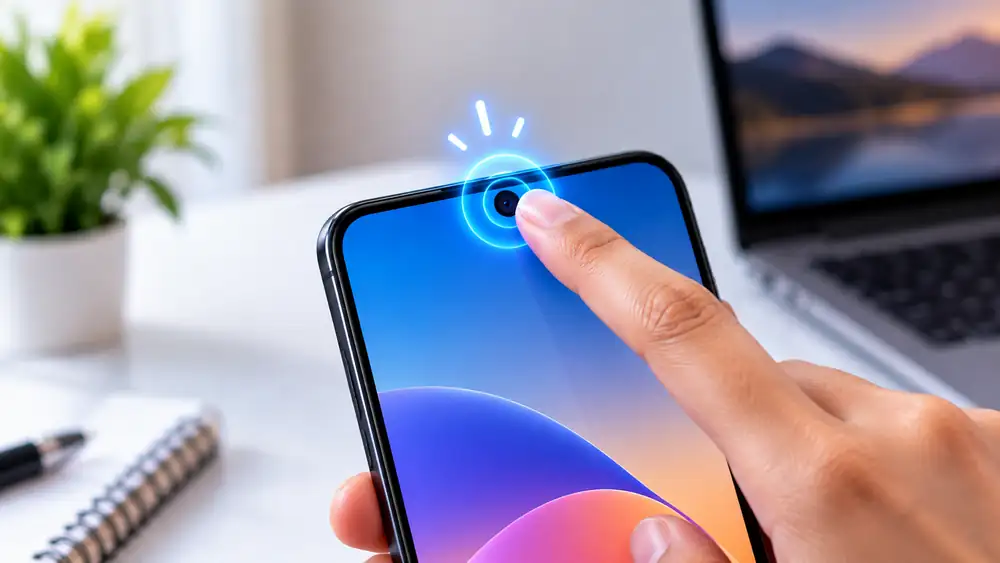
Many Android phones have a camera hole or notch that normally has no interactive function. Touch Notch uses this area as a shortcut zone, allowing users to trigger selected phone actions with different gestures. According to its current Google Play listing, the app supports single touch, double touch, long touch, and left or right swipe gestures.
Instead of opening menus every time you need a common function, you can assign an action to a gesture and access it from the top of the display. The app is particularly useful for people who frequently use shortcuts such as screenshots, flashlight, camera, recent apps, or music controls.
Touch Notch Features You Can Try
The app offers several types of shortcuts that can be assigned to different gestures. Some useful options include:
- Screenshot: Capture the current screen without using physical buttons.
- Flashlight: Turn the phone torch on or off quickly.
- Camera: Launch the camera directly.
- Screen Lock: Turn the display off from the notch area.
- App Shortcuts: Open a selected application quickly.
- Recent Apps: Switch between recently used applications.
- Music Controls: Play, pause, previous, or next track.
- QR & Barcode: Access scanning tools.
- Quick Dial: Start a selected phone call.
- System Controls: Use functions such as ringer mode and Do Not Disturb.
Because different gestures can perform different actions, users can create a shortcut arrangement based on how they normally use their phone.
How to Set Up Touch Notch
Getting started requires configuring the app and assigning actions to gestures. The exact permission screens can vary depending on the Android version and phone manufacturer.
- Install the app from Google Play.
- Open the app and review the available gesture options.
- Choose a gesture such as tap, double tap, long press, or swipe.
- Select the action you want that gesture to perform.
- Enable the required Accessibility Service permission.
- Test each gesture from the camera cutout area and adjust the settings if necessary.
The app uses Android’s Accessibility Service API to place an invisible interactive area around the camera cutout for the actions selected by the user.
Is Touch Notch Safe to Use?
Permission details are important because this type of shortcut app requires Accessibility Service access. Google Play’s listing states that the service is used to create the invisible button around the camera cutout and says that no data is collected by that service. However, the Play Store’s broader Data Safety section separately states that the app may collect app activity, app information and performance, and device or other IDs, and may share some of these categories with third parties.
For that reason, users should review the permissions and Data Safety information shown on Google Play before enabling the service.
Frequently Asked Questions
What does Touch Notch do?
It converts the camera cutout area into a gesture-based shortcut zone for selected phone functions.
Which gestures are supported?
The current listing mentions single touch, double touch, long touch, swipe right, and swipe left.
Can it take screenshots?
Yes. Screenshot capture is one of the actions listed on Google Play.
Does Touch Notch work on every Android phone?
Not necessarily. Its usefulness depends on the phone’s camera-cutout design, Android version, and permission support.
Where can I download Touch Notch?
The verified Android download is available through the official Google Play listing.
Conclusion
Touch Notch offers an interesting way to reuse the camera cutout as a shortcut area instead of leaving it inactive. With gesture-based access to screenshots, flashlight, apps, media, and system controls, it can make frequently used functions easier to reach. Before using it, check compatibility, required permissions, and the latest Google Play privacy information.
Internal Link Suggestion:
PMMY: 6 Powerful Loan Options for Small Businesses – Complete Guide
Official External Link:
Touch Notch on Google Play